Step-by-Step Setup

Simple Script Tag Accessibility Widget Installation Guide

Get AxOrigin up and running on your website in minutes.

Follow these steps to integrate the AxOrigin accessibility widget with Simple Script Tag

Manual Installation

  1. 1

    Navigate to AxOrigin Dashboard and fill the required details like email, password and name etc.
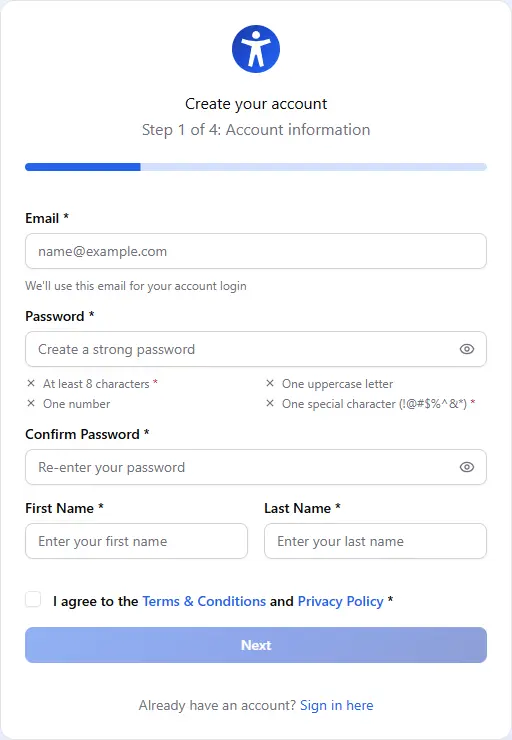
    Simple Script Tag installation step 1: Navigate to AxOrigin Dashboard and fill the required details like email, password and name etc.
  2. 2

    Verify your email address by clicking on the link sent to your registered email.
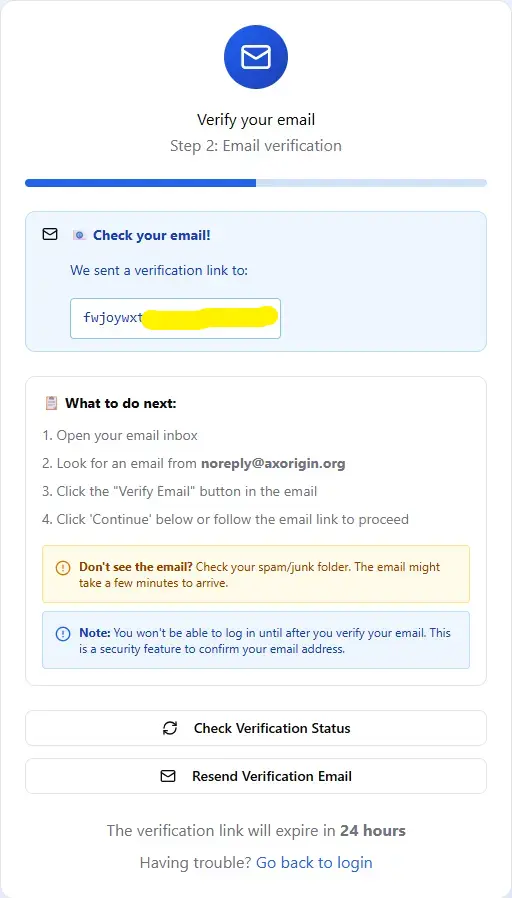
    Simple Script Tag installation step 2: Verify your email address by clicking on the link sent to your registered email.
  3. 3

    Add your website details in the dashboard to generate your unique code snippet.
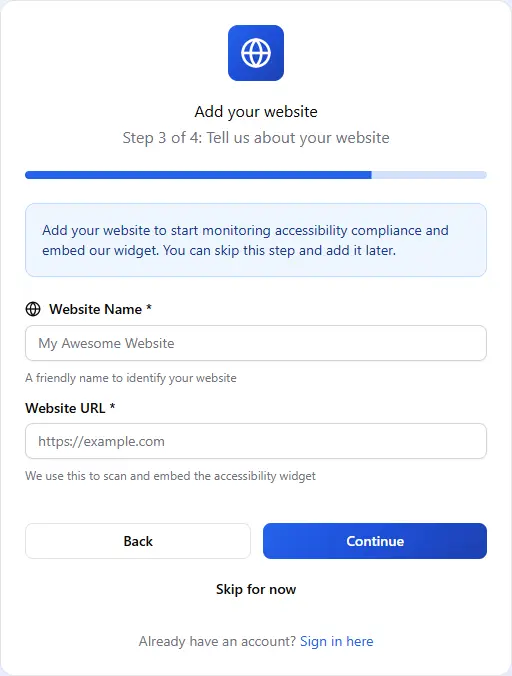
    Simple Script Tag installation step 3: Add your website details in the dashboard to generate your unique code snippet.
  4. 4

    Choose pricing plan suited for your website and start your 14 days free trial.
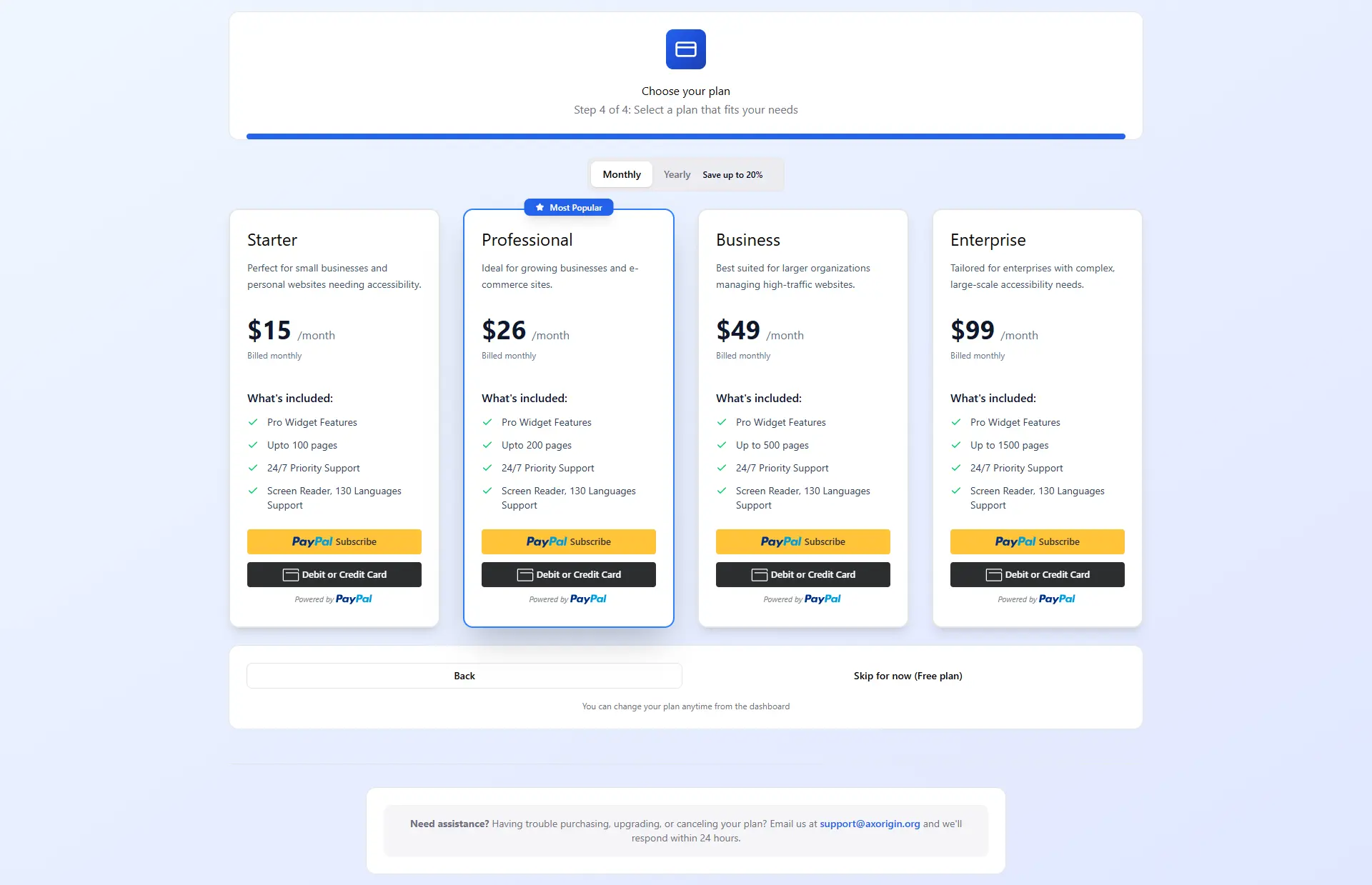
    Simple Script Tag installation step 4: Choose pricing plan suited for your website and start your 14 days free trial.
  5. 5

    Select your website from the list.

    Simple Script Tag installation step 5: Select your website from the list.
  6. 6

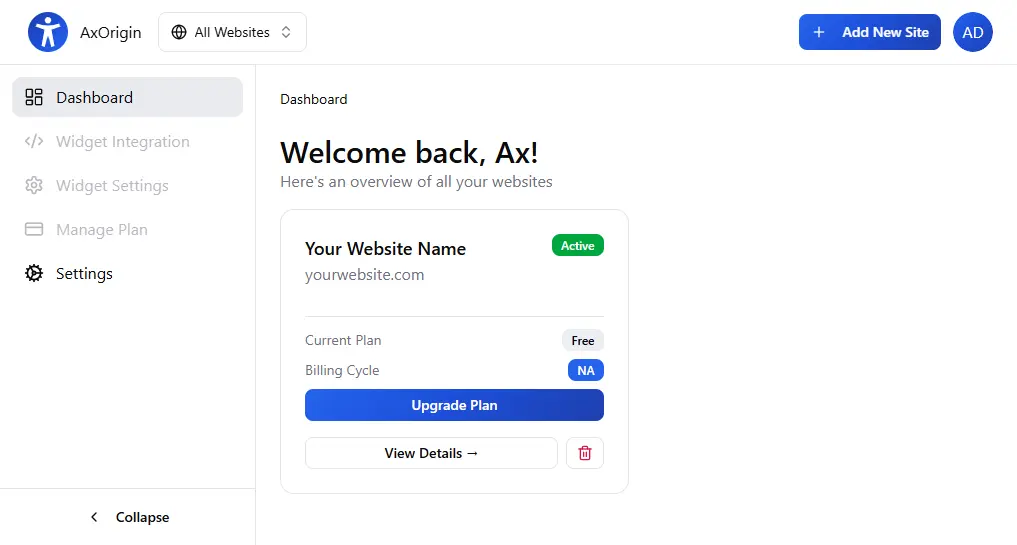
    Go to 'Widget Integrations' tab, and copy the generated code snippet for your website.
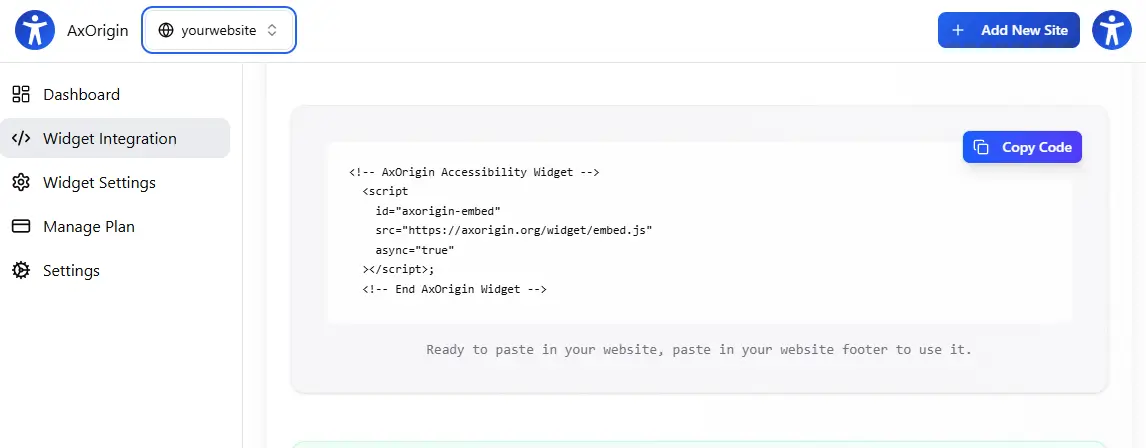
    Simple Script Tag installation step 6: Go to 'Widget Integrations' tab, and copy the generated code snippet for your website.
  7. 7

    Open your website's HTML file or template

  8. 8

    Paste the code just before the closing ‹/body› tag
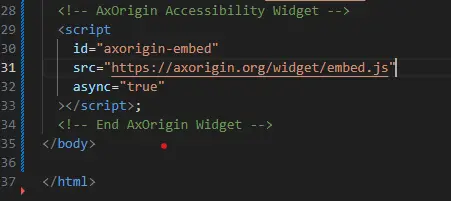
    Simple Script Tag installation step 8: Paste the code just before the closing ‹/body› tag
  9. 9

    Save and publish your changes

Ready to Make Your Website Accessible?

Join 50,000+ websites using AxOrigin to provide inclusive experiences for all users.

14-day free trial
WCAG 2.1, 2.2 and ADA compliance
2-minute setup