Step-by-Step Setup

Wix Accessibility Widget Installation Guide

Use this Wix accessibility widget guide to add AxOrigin to a Wix site, publish it across all pages, and give visitors accessibility controls such as contrast, keyboard support, text adjustments, and navigation assistance.

Follow these steps to integrate the AxOrigin accessibility widget with Wix

Why use AxOrigin on Wix?

Install through Wix App Market or a Wix custom-code script.
Apply the widget to all Wix pages from the Body End custom-code area.
Pair the widget with audits or remediation when you need deeper WCAG and ADA support.

Wix accessibility setup

Wix accessibility widget setup for WCAG and ADA support

AxOrigin gives Wix visitors accessibility controls for visual adjustments, keyboard-friendly navigation, text spacing, readable fonts, and orientation support. It helps improve usability quickly while your team continues WCAG testing, content fixes, and remediation.
Best fit for Wix sites

Use the Wix App Market installation when you want the simplest setup. Use the manual custom-code option when you need to place the AxOrigin widget script across every page from the Wix dashboard.

Official App Available (Recommended Integration Method)

Install directly from the Wix marketplace

Open App Market

Manual Installation (Alternate Integration Method)

  1. 1

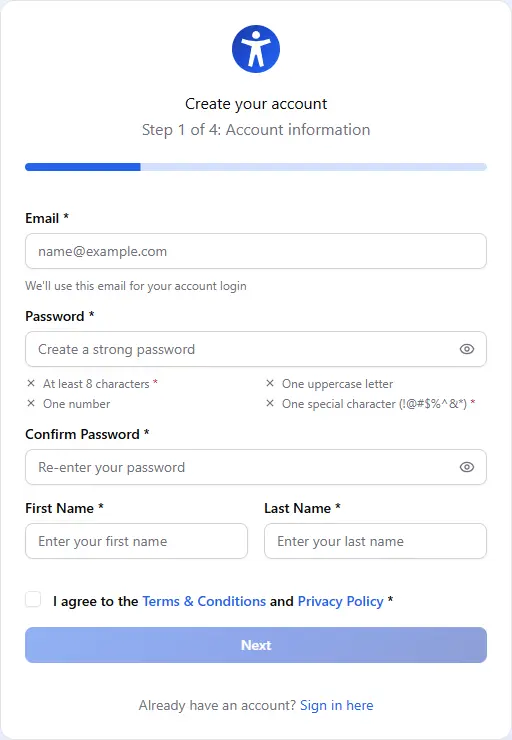
    Navigate to AxOrigin Dashboard and fill the required details like email, password and name etc.

    Wix installation step 1: Navigate to AxOrigin Dashboard and fill the required details like email, password and name etc.
  2. 2

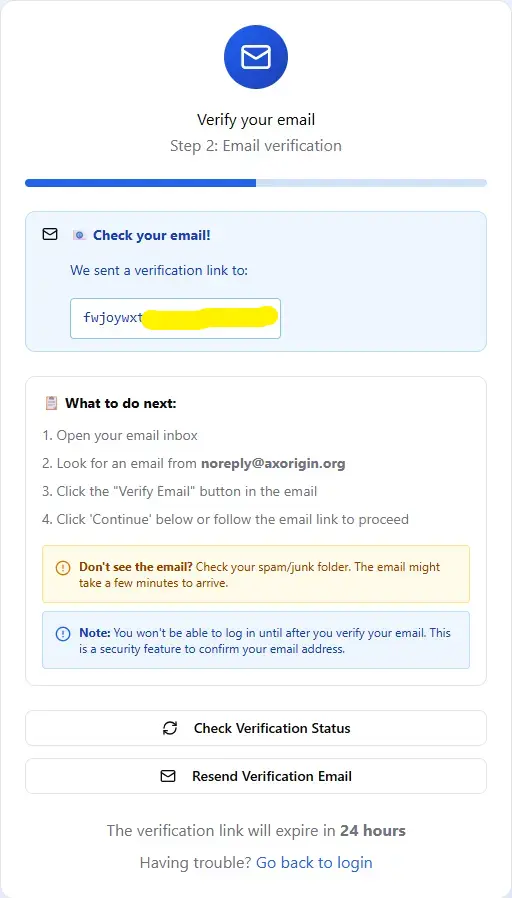
    Verify your email address by clicking on the link sent to your registered email.

    Wix installation step 2: Verify your email address by clicking on the link sent to your registered email.
  3. 3

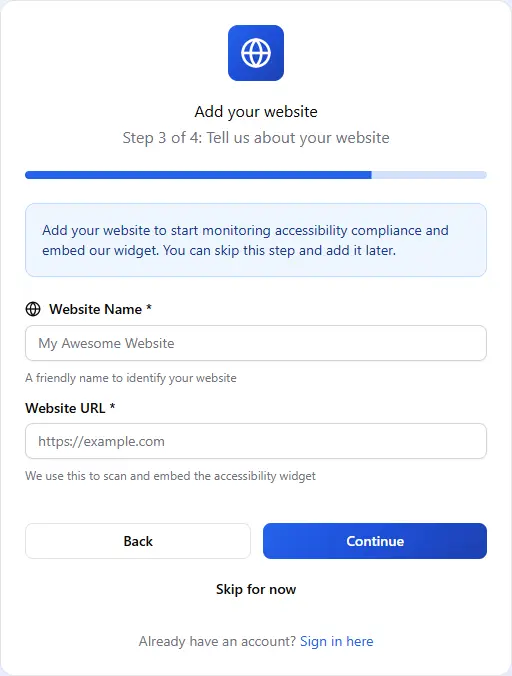
    Add your website details in the dashboard to generate your unique code snippet.

    Wix installation step 3: Add your website details in the dashboard to generate your unique code snippet.
  4. 4

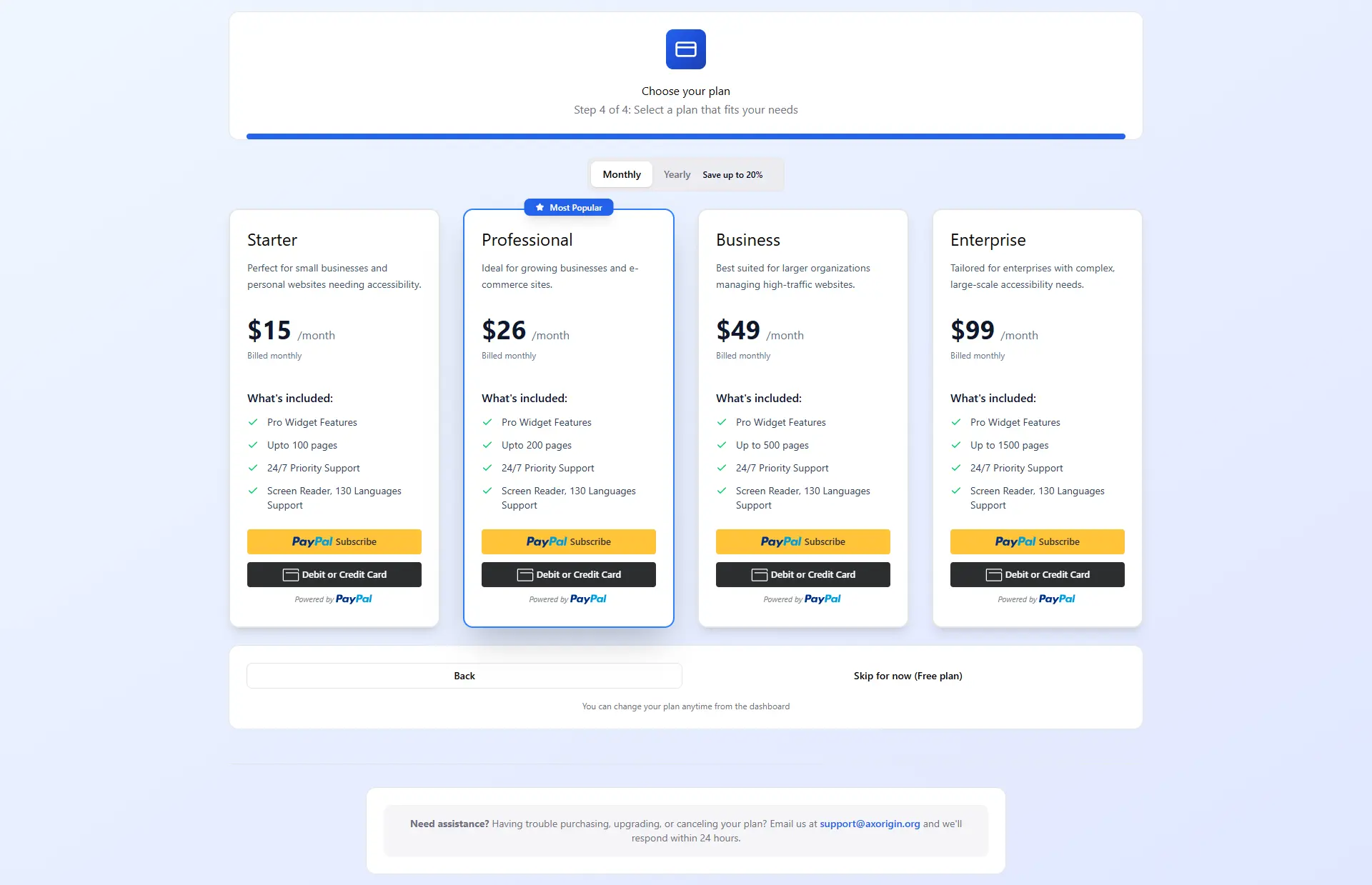
    Choose pricing plan suited for your website and start your 14 days free trial.

    Wix installation step 4: Choose pricing plan suited for your website and start your 14 days free trial.
  5. 5

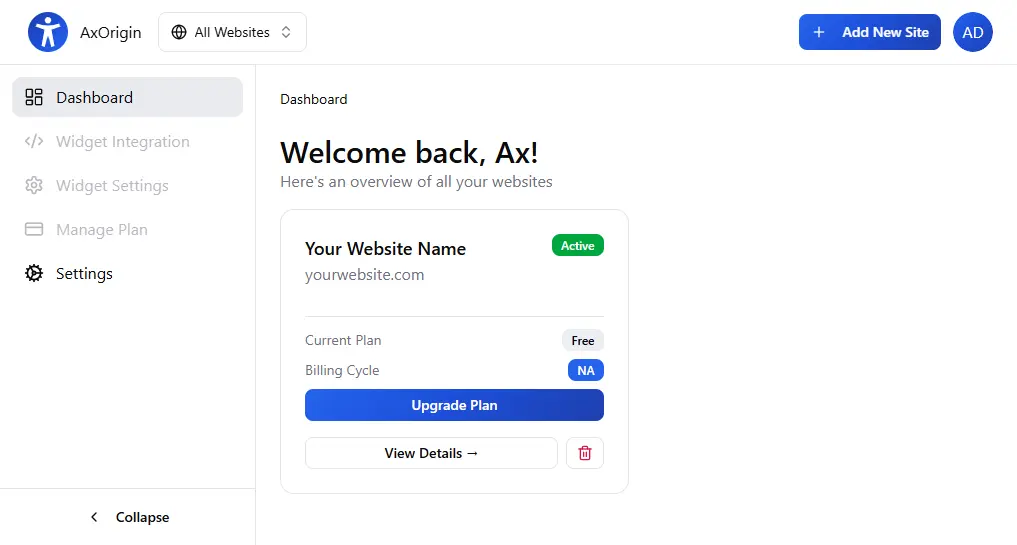
    Select your website from the list.

    Wix installation step 5: Select your website from the list.
  6. 6

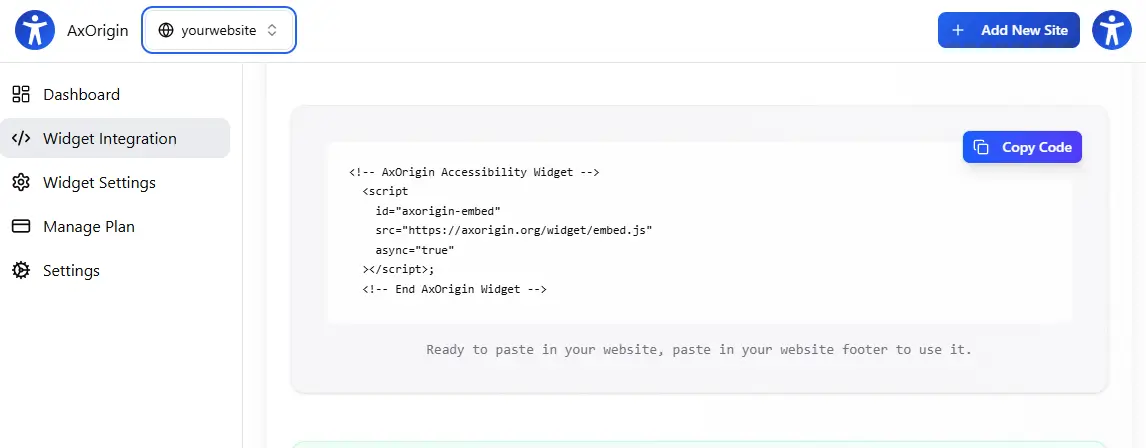
    Go to 'Widget Integrations' tab, and copy the generated code snippet for your website.

    Wix installation step 6: Go to 'Widget Integrations' tab, and copy the generated code snippet for your website.
  7. 7

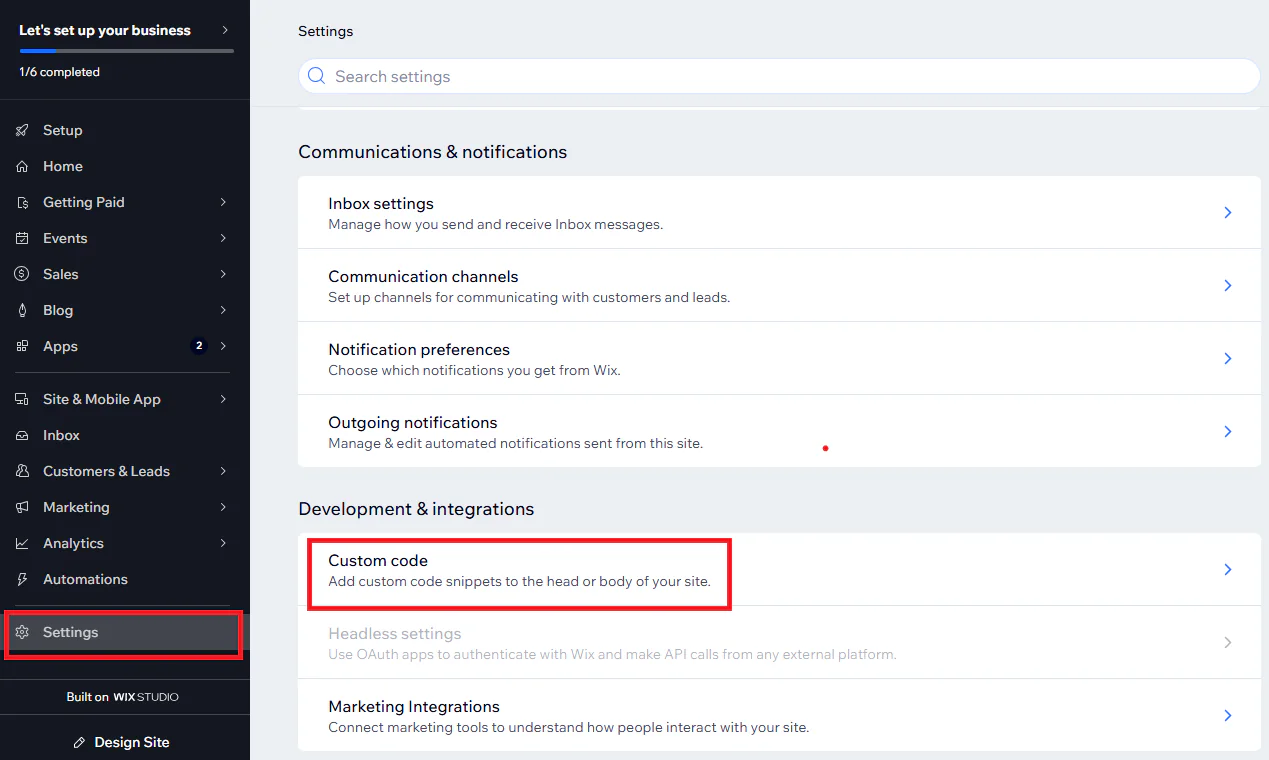
    From your Wix Dashboard, go to 'Settings'. Find 'Custom Code' option under 'Development & integrations'.

    Wix installation step 7: From your Wix Dashboard, go to 'Settings'. Find 'Custom Code' option under 'Development & integrations'.
  8. 8

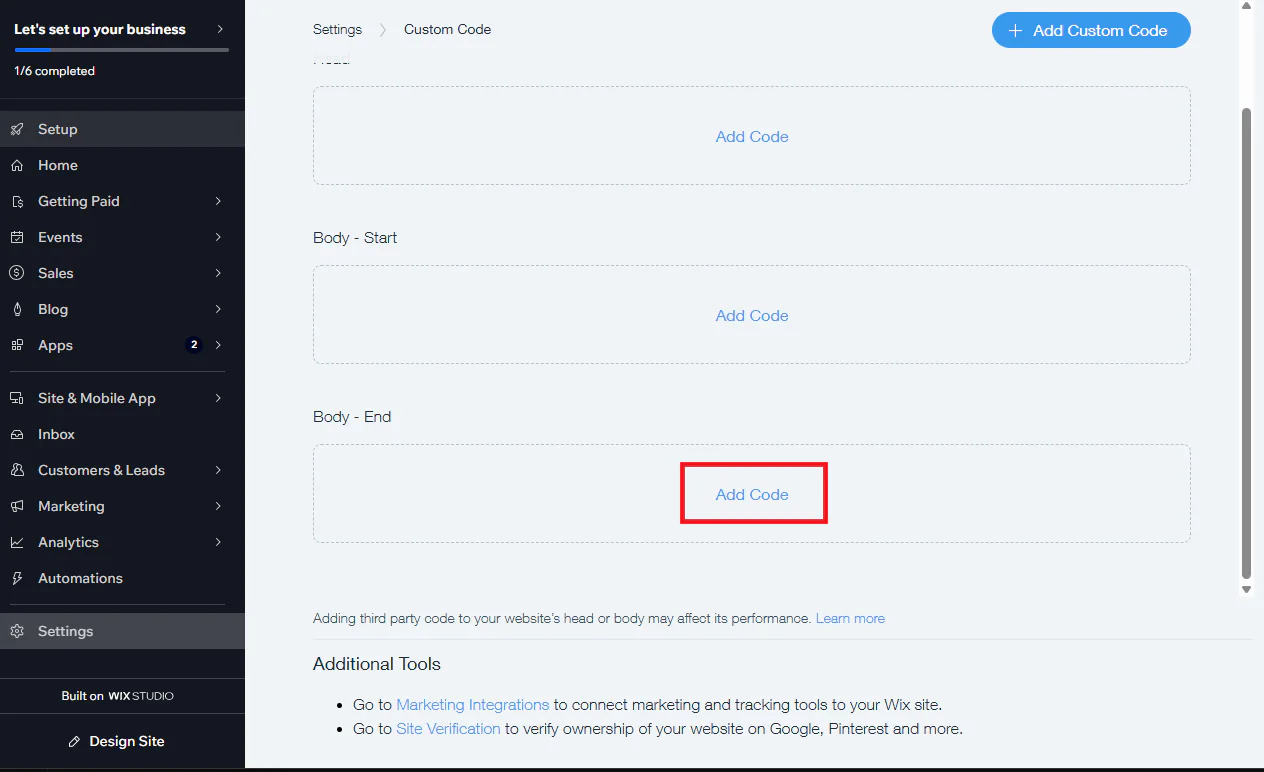
    Click 'Add Code' in the Body End section.

    Wix installation step 8: Click 'Add Code' in the Body End section.
  9. 9

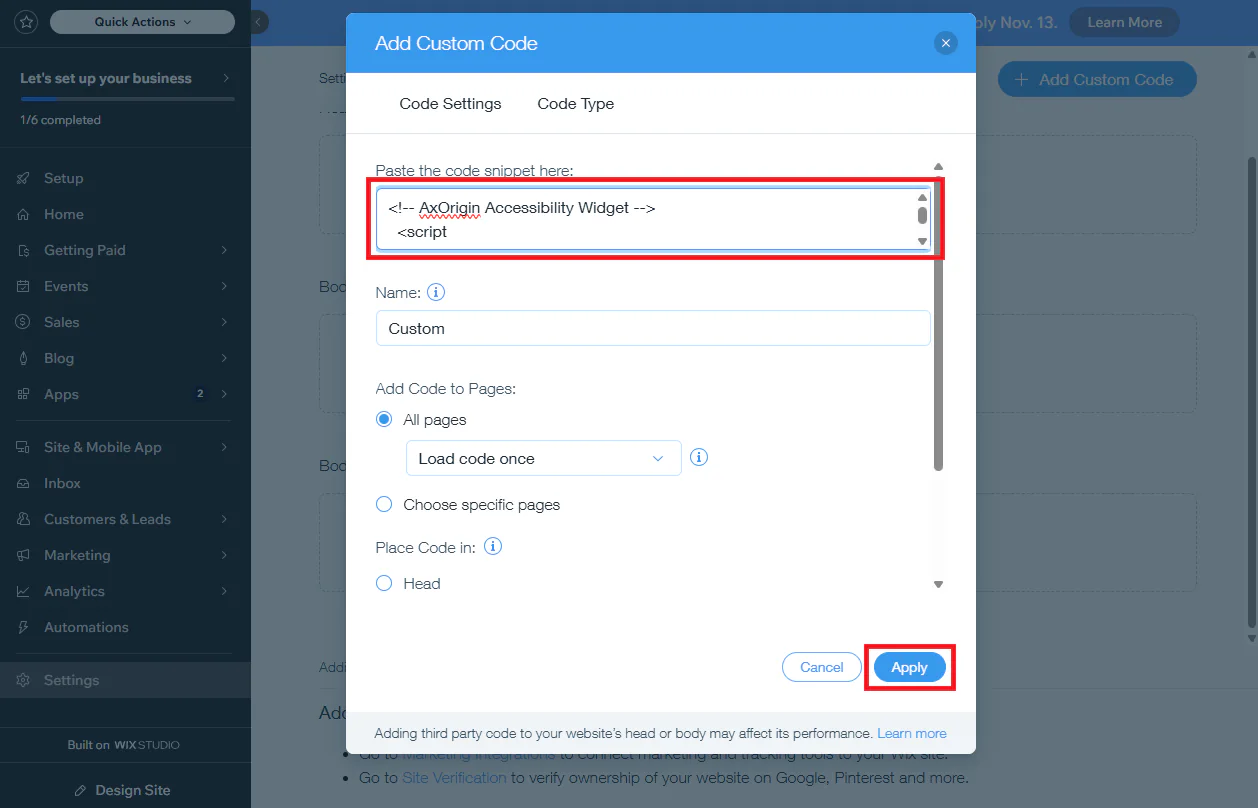
    Paste the code snippet provided above. Keep 'All pages' selected. Click on 'Apply'.

    Wix installation step 9: Paste the code snippet provided above. Keep 'All pages' selected. Click on 'Apply'.
  10. 10

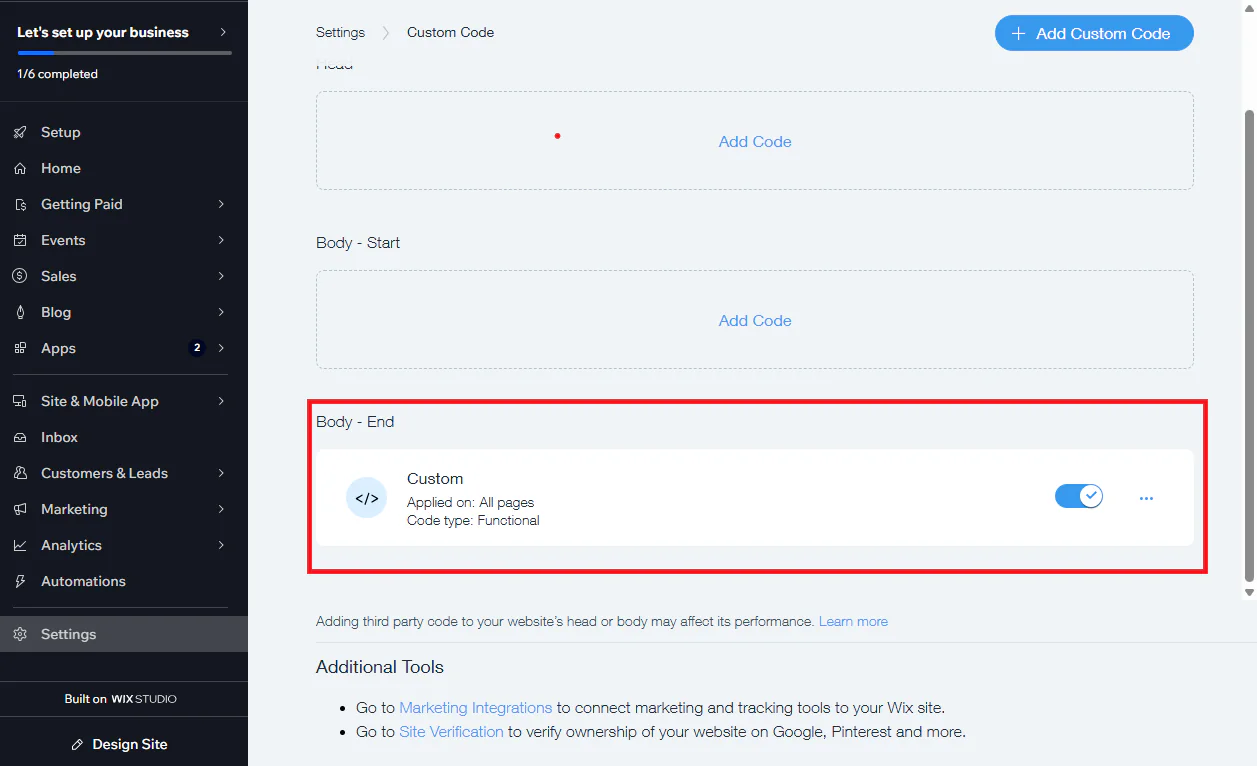
    You'll be able to see the added code under the 'Body-End' section.

    Wix installation step 10: You'll be able to see the added code under the 'Body-End' section.
  11. 11

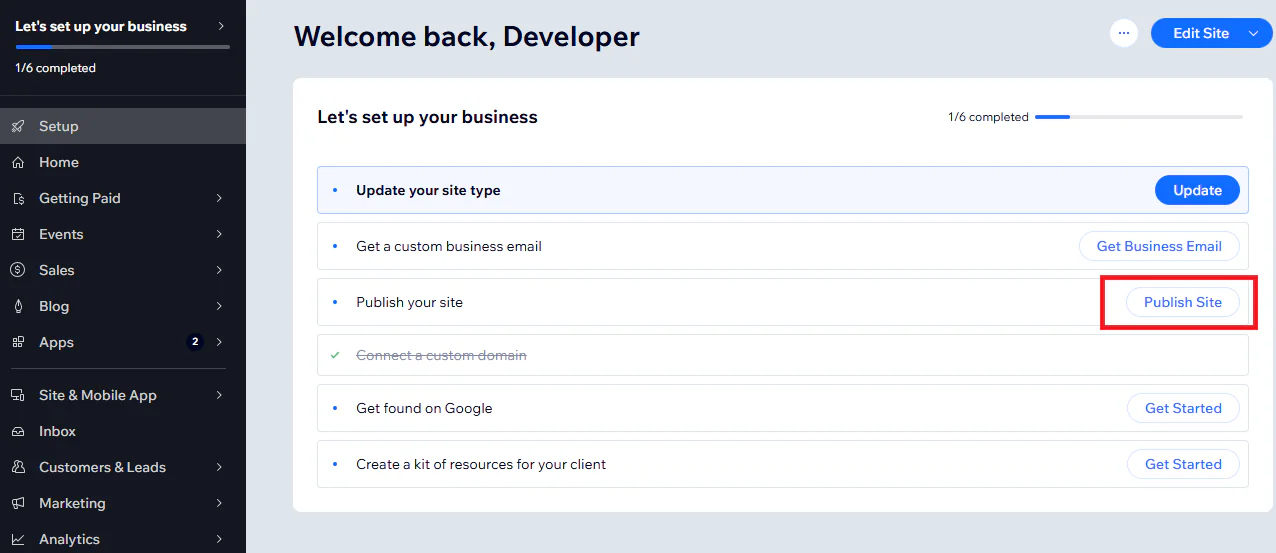
    Publish your Wix site.

    Wix installation step 11: Publish your Wix site.

Wix accessibility widget FAQ

Can I add the AxOrigin accessibility widget to every Wix page?

Yes. In the manual Wix setup, keep the Wix custom code set to All pages and place it in the Body End section before publishing the site.

Do I need to edit Wix theme code?

No. The guide uses Wix dashboard settings and a copied AxOrigin script, so most Wix site owners can complete the setup without editing template files.

Does a Wix accessibility widget replace an accessibility audit?

No. A widget can improve the visitor experience, but audits and remediation are still useful for finding and fixing underlying WCAG issues in site content, templates, and custom code.

Ready to Make Your Website Accessible?

Join 50,000+ websites using AxOrigin to provide inclusive experiences for all users.

14-day free trial
WCAG 2.1, 2.2 and ADA compliance
2-minute setup